Why does a marketplace need a file upload feature?
What type of files can be uploaded to a marketplace?
How do you upload files to a marketplace as a user?
How to upload a file to a website: what happens behind the scenes?
How do you get an upload file direct link?
What are some file upload feature examples on websites?
What are files in Sharetribe, and what is supported out of the box?
How does file management in Sharetribe work in practice?
Is Sharetribe bulk upload possible?
How to set up digital downloads in a marketplace?
Subscribe and you will promptly receive new published articles from the blog by mail
A file upload feature lets users share photos, videos, documents, and digital products inside your marketplace instead of sending them by email or chat apps. Pick the file types that match your business model, upload straight to cloud storage, and serve files through secure links. In 2026, Sharetribe added much of this out of the box: file attachments in transaction messages and a Digital download transaction process for selling files. Custom development is now about going further, for example bulk imports, larger files, or custom licensing. Below, we walk through how the file upload feature works, what to allow, and how it plays out in Sharetribe.
- Start narrow with file types. Allow images and PDFs first, then expand to video and archives only when users ask. Every new format adds validation, storage, and support work.
- Learn how to upload a file to website forms the right way. The best setup sends files directly from the browser to cloud storage, so your server only issues a short-lived permission instead of handling every byte.
- Show limits and progress before users upload files to a website. Displaying supported formats, size limits, and a progress indicator prevents most frustration and makes the flow feel reliable.
- Treat every upload file direct link as a design decision. Use public links for listing photos and signed, expiring links for contracts, IDs, and paid downloads.
- Sharetribe now covers the basics natively: listing and profile images, file attachments in messages, and paid digital downloads. Custom work is mostly needed for bulk imports and anything beyond the native limits.
Why does a marketplace need a file upload feature?
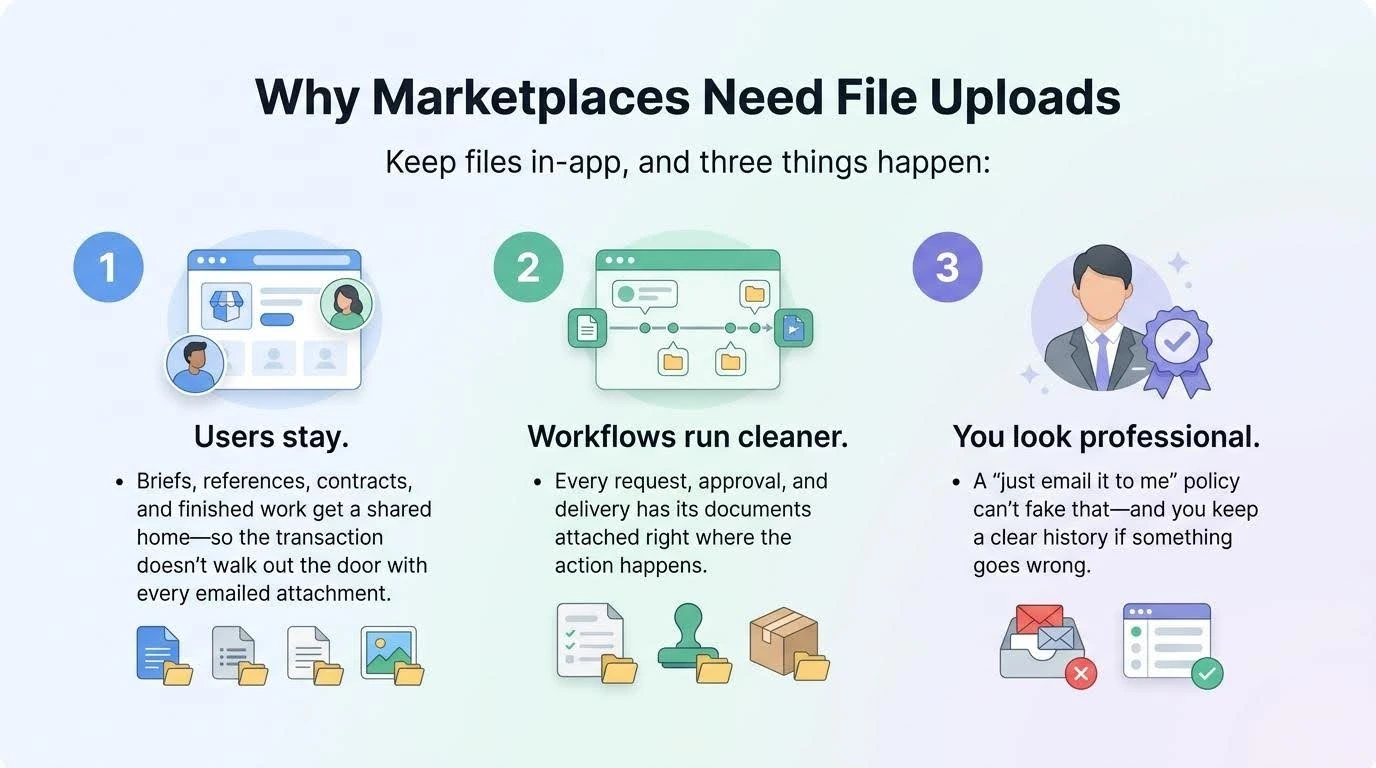
Because files are part of the transaction, and when they live outside your platform, the transaction leaves with them. Every attachment sent by email is a conversation you no longer control.
For service marketplaces, the effect is easy to see. Briefs, reference images, contracts, and finished work all move between two people, and they need a shared home. If that home is your platform, users stay, and you keep a clear history if something goes wrong.
There is a business side too. Keeping files in-app supports your transaction workflows for service marketplaces, because every request, approval, and delivery has its documents attached right where the action happens. It also makes the whole experience feel more professional, which is hard to fake with a “just email it to me” policy.
What type of files can be uploaded to a marketplace?
When founders ask what type of files can be uploaded to marketplace platforms, the answer is usually four groups: images, videos, documents, and digital products. Which ones you allow depends on your model, and it is smart to start narrow and expand later.
What type of files can be uploaded to marketplace listings and chats
Here is a practical breakdown:
File group | Typical formats | Common use | Main risk |
|---|---|---|---|
Images | JPG, PNG, WebP | Listing photos, references, before/after | Huge file sizes, hidden metadata |
Videos | MP4, MOV | Portfolios, project walkthroughs | Storage and bandwidth costs |
Documents | PDF, DOCX, XLSX | Briefs, contracts, specs, invoices | Malicious or macro-enabled files |
Digital products | ZIP, PDF, audio, templates | Paid downloads, licenses | Piracy and link sharing |
How your marketplace model shapes the list
File types a marketplace can accept, with typical use and risk. Your marketplace type shapes the list. A rental platform cares about ID scans and photos, while a B2B marketplace may need spec sheets and certificates. If you are unsure where your platform sits, our guide to different marketplace models and categories will help you decide.
A simple rule helps here. If you are still asking what type of files can be uploaded to marketplace chats on day one, allow images and PDFs only, then add video and archives once users ask for them. Every new format is another thing to validate, store, and support. On Sharetribe, native message attachments already accept most common file types and block executables and scripts, so the decision is less about what the system allows and more about what you invite users to send.
How do you upload files to a marketplace as a user?
Here is how to upload files to marketplace bookings in practice: the user clicks an upload button, picks files from their device, and sees them appear in the conversation or listing right away. A good flow takes seconds and never makes people leave the page.
Native file attachments in Sharetribe
On a standard Sharetribe marketplace, this works without code. The operator turns on “Allow file attachments” for a listing type in Console, and both transaction parties see an “Attach a file” option under the message field. Users can add up to 10 files per message, up to 1 GB each, uploaded one at a time. Every file is scanned for malware, and the recipient sees the message once the scan is done.
If the native flow fits your marketplace, you can stop there. If your users need more, here is what a custom flow can look like.
Provider side: a custom upload flow for bookings
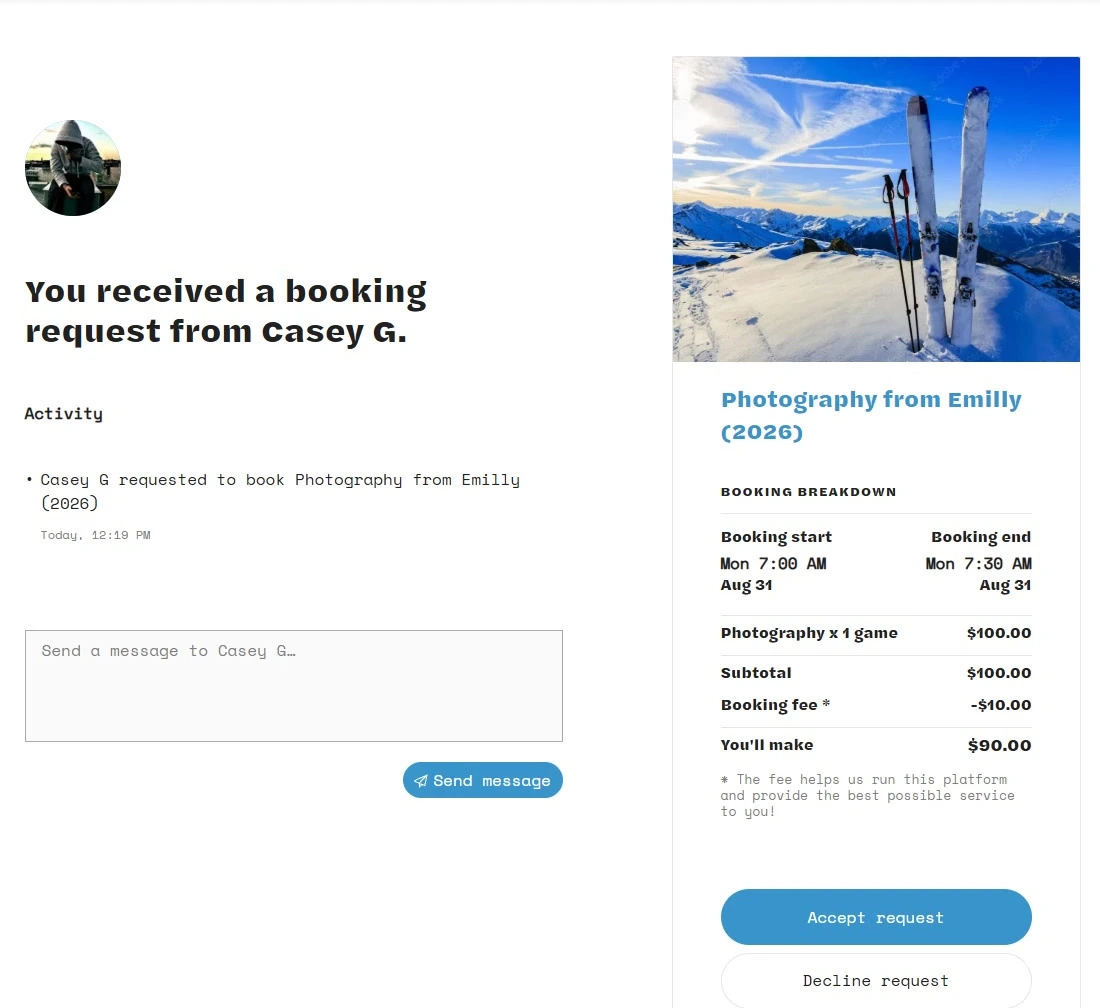
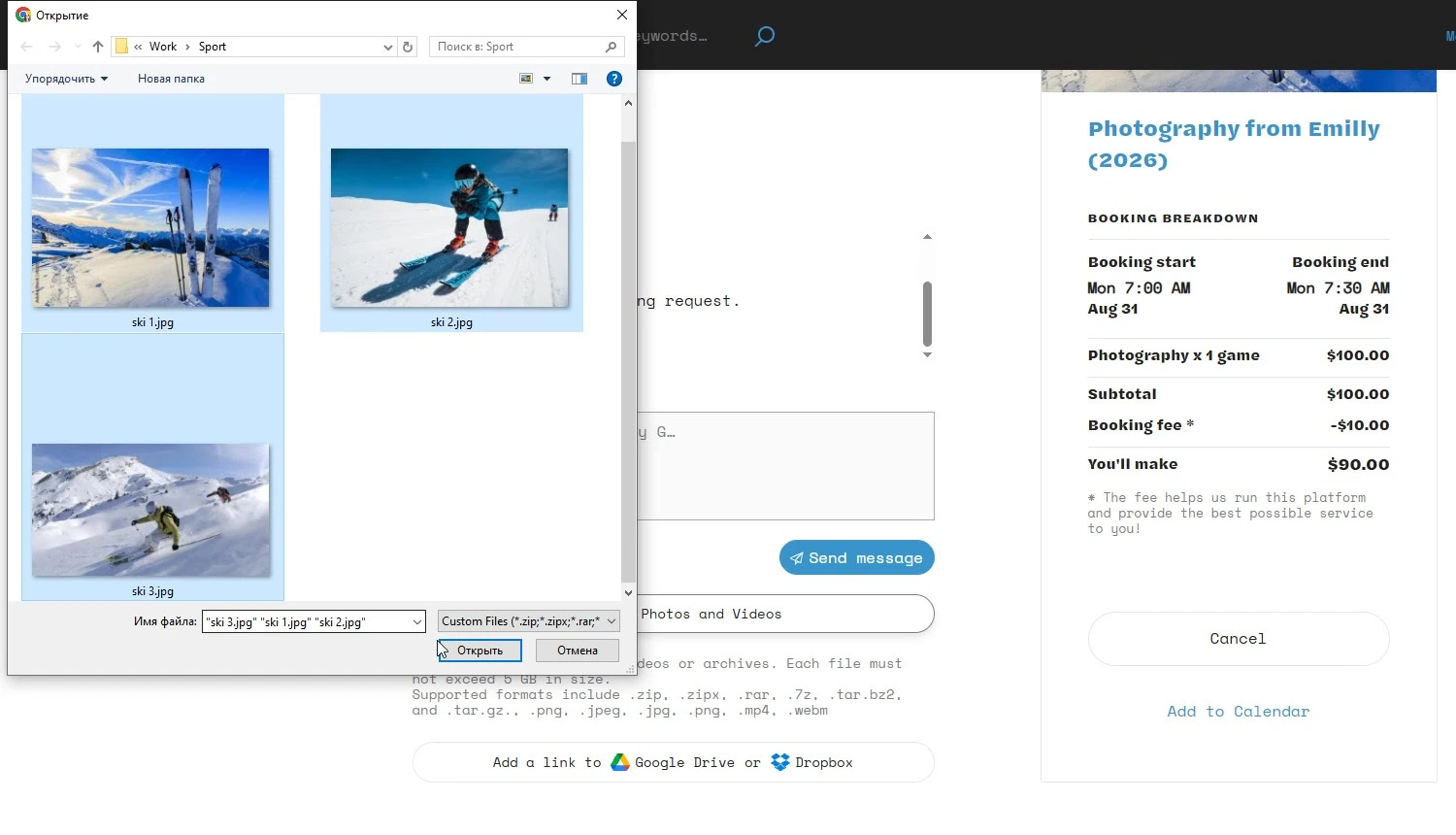
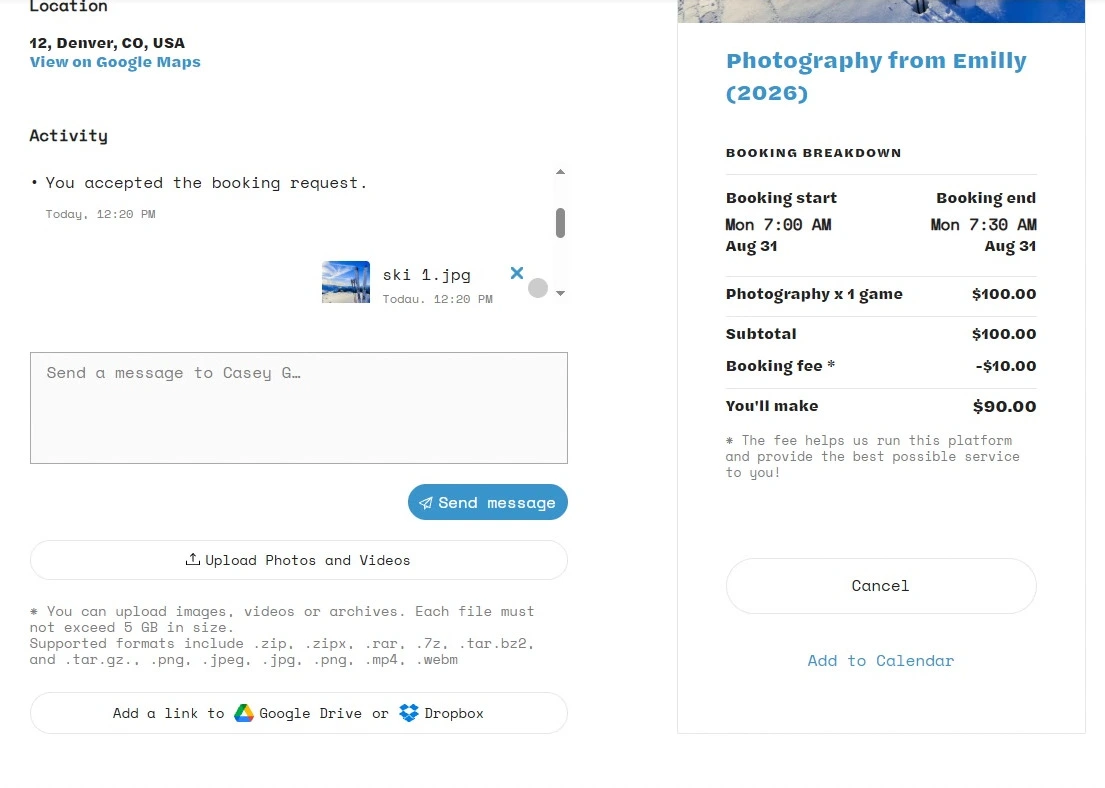
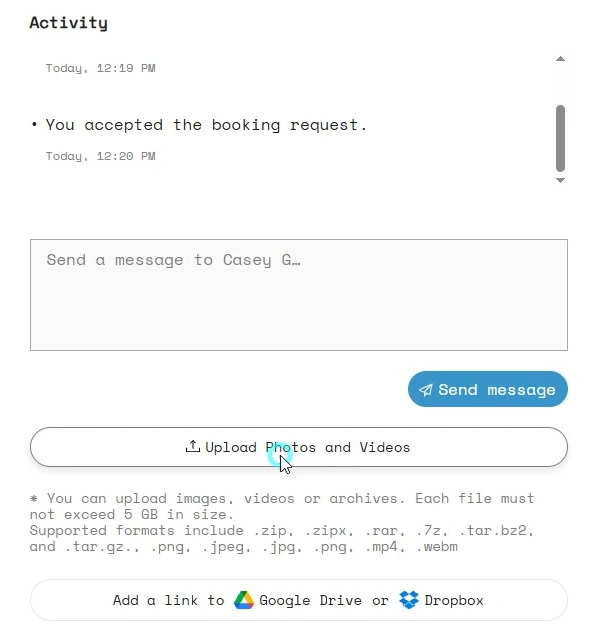
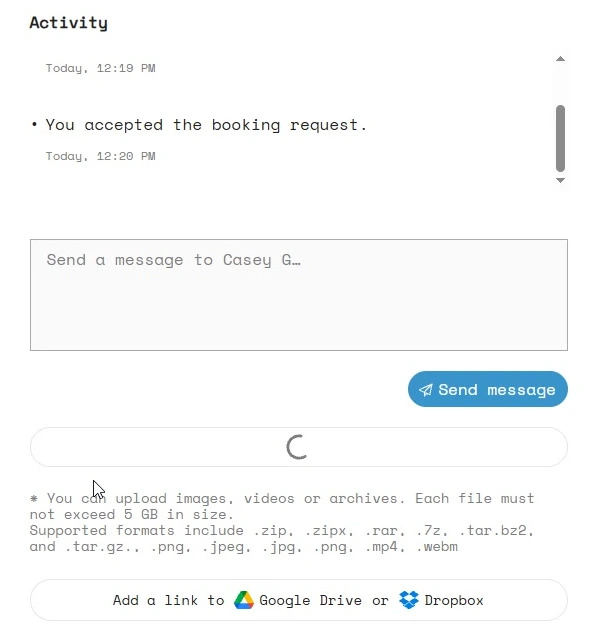
Our own demo shows what custom work can add. On a Sharetribe marketplace called Athlens, we built a dedicated upload step into the booking flow. A provider accepts a booking request, then clicks “Upload Photos and Videos.” A modal opens, they select several images, and a progress indicator shows each file landing in the chat timeline.
Customer side: viewing and opening files
On the customer side, the files show up in the booking activity feed immediately. Customers can click a thumbnail to open a full-screen preview of an image or video in high resolution.
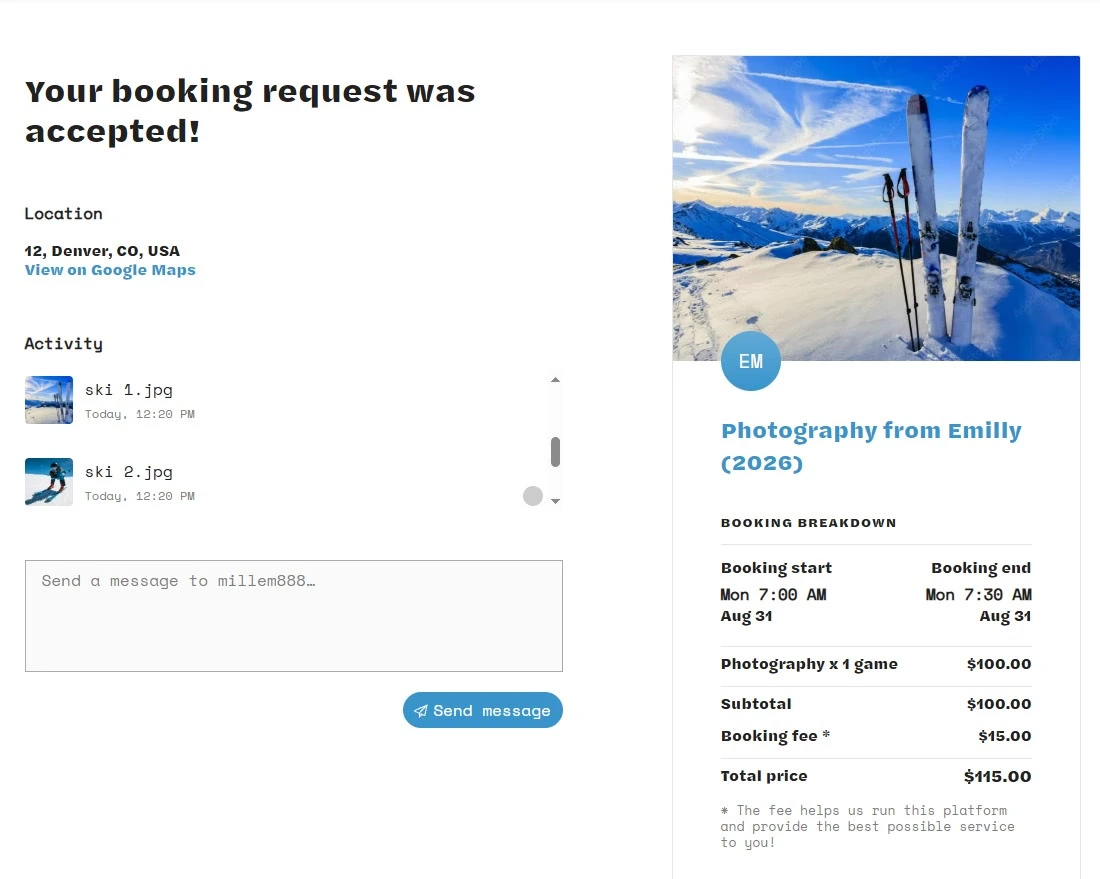
What makes the upload flow easy to use
Notice that the supported formats and size limits are shown before the user uploads, which prevents most of the frustration.
If you are working out how to upload files to marketplace conversations in your own product, borrow three things from this flow: one clear upload button next to the message box, visible limits before the file picker opens, and an instant thumbnail in the activity feed so nobody has to wonder whether the file arrived.
This flow also goes past the native defaults in a few places: providers select several files at once instead of adding them one by one, the size limit is 5 GB instead of 1 GB, and uploads are tied to a dedicated booking action rather than a general message. Those are typical reasons to extend Sharetribe’s built-in attachments with custom code.
How to upload a file to a website: what happens behind the scenes?
Wondering how to upload a file to website forms or portals? The browser sends it to a server or storage service, which saves it and returns a reference the site can use later. The best setups skip your own server entirely.
Two ways to upload files to a website
Here is the pattern we prefer. The website asks your backend for a short-lived upload permission, and the browser then sends the file directly to cloud storage such as Amazon S3. Your backend only stores the reference. This is also how Sharetribe handles files natively: files go to and from Sharetribe-hosted storage through short-lived pre-signed URLs, not through the marketplace API.
There are two common ways to upload files to a website: route them through your own server, or send them straight from the browser to cloud storage. Here is how they compare.
Aspect | Through your own server | Direct to cloud storage |
|---|---|---|
Bandwidth | Every byte passes through your server twice | Files skip your server entirely |
Large files and video | Slow, often times out | Handles multi-GB files with resumable uploads |
Server load | Grows with every upload | Backend only issues a short-lived permission |
Validation | Easy to inspect the file before saving | Needs a post-upload check or scan step |
Setup effort | Simple to start | Needs storage, permissions, and CORS setup |
Best for | Small avatars and low-volume tools | Marketplaces with photos, videos, and documents |
Uploading through your server vs. directly to cloud storage.
Why bother? When users upload files to a website through your own server, every large video eats your bandwidth and slows everyone down. Direct-to-storage uploads keep the app fast, and uploading files to a website this way scales without drama.
Best practices for uploading files to a website
Whatever your stack, how to upload a file to website forms safely comes down to the same small set of habits. They apply to every marketplace that lets users start uploading files to a website from their own devices.
A few details matter just as much as the architecture:
- Show upload progress, because silence feels like failure.
- Validate type and size on both the client and the server.
- Rename files on arrival, so a user’s “final_FINAL(2).pdf” cannot collide with another.
- Scan files for malware before the other party can open them. Sharetribe’s native attachments do this automatically and hold the message until the scan finishes.
How do you get an upload file direct link?
A direct link is a URL that points straight to the stored file, and you can create one by serving the file from storage or a CDN. The real question is whether that link should be public or private.
Public upload file direct link
Public links work for listing photos and portfolio images. Anyone can open them, and CDNs deliver them quickly.
Signed links for private files
Private files, such as contracts, ID documents, and paid downloads, should never sit behind a permanent public URL. Use signed links instead: they expire after a few minutes and work only for the person who requested them. Sharetribe’s native file features already work this way: to download a file, the user requests a short-lived download URL, so there is no permanent public link to leak.
Choosing the right link type
Treat any upload file direct link as a design decision, not a default. If a link leaks in a screenshot or a forwarded message, an expiring link limits the damage to a few minutes, while a permanent one keeps leaking forever.
What are some file upload feature examples on websites?
The most familiar examples are job boards with CV uploads, freelance platforms with deliverables, and rental sites with ID verification. Each one uses the same feature for a different job.
When you line up file upload feature on website examples across industries, the feature looks the same on the surface but serves a different job each time.
Examples by marketplace type
A few that show the range:
- Freelance and service marketplaces: clients attach briefs, and providers return finished work inside the order.
- Car sharing and rental platforms: drivers upload licenses and photos during onboarding. We cover that in our guide to the user registration flow for car sharing apps.
- Rental booking systems: damage photos at pickup and return protect both sides, which is one of the features of a car rental reservation system that owners value most.
- B2B marketplaces: suppliers upload catalogs, certificates, and technical documents, a staple among the top B2B marketplace features.
- Digital product marketplaces: sellers upload templates, patterns, or stock media to a listing, and buyers download them right after payment.
What the examples have in common
Notice the pattern. The upload is rarely the point. It supports a bigger workflow, such as trust, booking, or procurement.
What are files in Sharetribe, and what is supported out of the box?
Out of the box, Sharetribe now handles listing and profile images, file attachments in transaction messages, and paid digital downloads. Custom development is mostly needed for bulk imports and for anything beyond the native limits. Check the current Sharetribe documentation before you plan, since platform capabilities change.
What works natively
Images are still the base. Providers add photos to listings, users add avatars, and the marketplace displays them without extra work.
Since 2026, general files are native too. Operators can turn on file attachments in messages per listing type, so customers and providers can send briefs, contracts, photos, or finished work right in the transaction thread. Each message holds up to 10 files of up to 1 GB each, executables and scripts are blocked, and every file is scanned for malware.
For selling files, the Digital download transaction process lets sellers upload up to 10 files (1 GB each) to a listing. The files stay hidden until purchase, and payment unlocks them on the transaction page. For made-to-order work, such as logos or illustrations, transaction fields collect the brief and message attachments carry the delivery.
Operators stay in control as well. In Console, they can view, download, or delete files attached to listings and messages, or switch off file uploads and downloads entirely in access control settings.
Where custom development comes in
The gap is now much smaller, and it sits at the edges. Custom development comes in when you need files larger than 1 GB, several files selected in one step, files in places other than messages and listings (for example, ID documents on user profiles), bulk imports, or extra rules such as download limits, watermarks, and per-buyer licenses. That is where our custom file upload feature for Sharetribe marketplaces fits.
Here is a quick map of files in Sharetribe: what you get natively and what usually needs custom work.
Need | Out of the box | With custom development |
|---|---|---|
Listing images | Yes, upload and display | Custom crops, watermarks, extra variants |
Profile images (avatars) | Yes | No changes usually needed |
Files in messages | Yes, up to 10 files per message, 1 GB each, malware-scanned | Larger files, multi-file selection, custom previews and galleries |
Bulk listing import | No import button | Script that creates listings through the APIs |
Paid digital downloads | Yes, the Digital download transaction process | Download limits, watermarks, per-buyer licenses, free downloads |
Access rules for files | Visible to transaction parties; operator controls in Console | Custom expiry, role-based access, files outside transactions |
Files in Sharetribe: native support vs. custom development. Status as of late 2026; check the current docs before planning.
Plan file needs before launch
The native features cover many marketplaces, so start by checking them against your workflow. The risk is finding a gap late, after launch, when users start moving to email. If you are planning a build, it helps to decide on file needs early. Our team works on this daily through custom Sharetribe development.
How does file management in Sharetribe work in practice?
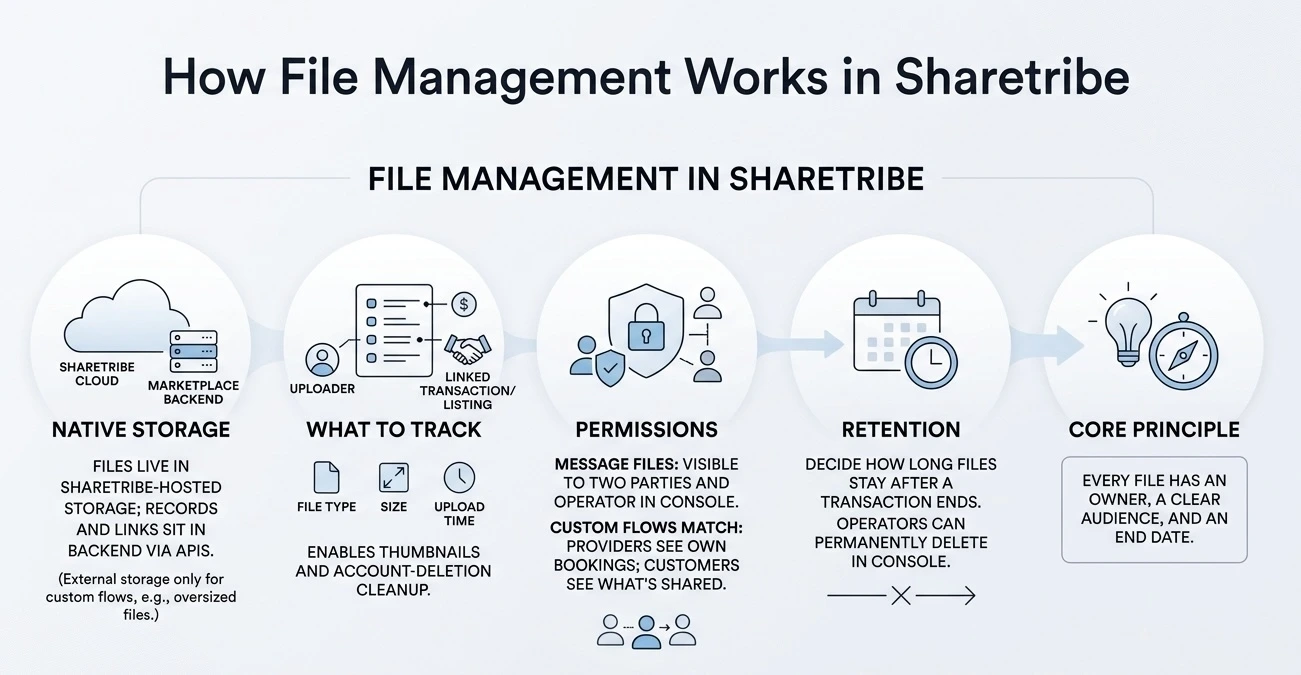
Good files management Sharetribe marketplaces can rely on starts with the native setup: files live in Sharetribe-hosted storage, while the file records and their links to listings and messages sit in the marketplace backend and are available through the APIs. You only need your own external storage if you build a custom flow, for example, for files above the native size limit.
What to store with each file
Sharetribe tracks this for native files. If you build a custom flow, here is what we usually keep with each file reference: who uploaded it, which transaction or listing it belongs to, the file type, the size, and the upload time. That small record makes everything else possible, from showing a thumbnail in the activity feed to deleting a file when a user closes their account.
Permissions
Permissions deserve their own thought. Natively, files attached to messages are visible only to the two transaction parties and to the operator in Console. Any custom flow should follow the same logic: a provider should see the files from their own bookings and nothing else, and a customer should see only what is shared with them.
Retention and the file life cycle
Then there is the life cycle. Decide how long files stay after a transaction ends, and write it into your terms. Storage is cheap, but unlimited retention of personal documents is a liability, not a feature. Sharetribe lets operators delete files in Console, and deleted files are removed permanently, but the retention policy itself is your decision.
That is the core of the files management Sharetribe marketplaces need: every file has an owner, a clear audience, and an end date.
Is Sharetribe bulk upload possible?
Yes, but unlike file attachments and digital downloads, it is still a custom job, not a button. Sharetribe bulk upload is usually built as a script that reads a spreadsheet and creates listings through the platform’s APIs.
When you need Sharetribe bulk upload
This matters most for marketplaces that launch with existing inventory. A supplier with 800 products will not add them one by one, and neither should you ask them to.
Steps for a reliable import
A reliable bulk import usually follows these steps:
- Map the spreadsheet columns to listing fields.
- Validate every row, and report errors in a readable file.
- Fetch and upload the images for each listing.
- Run a dry run on a small batch first.
- Respect API rate limits, so the import does not fail halfway.
Handling images during import
The trap is images. Text imports in minutes, while thousands of photos take real time, so plan for retries and a clear progress log. The same goes for downloadable product files on a digital download marketplace: they are often much larger than photos, so confirm how your import will handle them before you start.
How to set up digital downloads in a marketplace?
To understand how to set up digital downloads, store the product file privately, connect it to a paid transaction, and give the buyer access only after payment. Sharetribe now supports this out of the box with the Digital download transaction process, so most marketplaces can launch it without code.
How to set up digital downloads: the core flow
In Sharetribe, you enable the Digital download process in the listing type settings in Console. From there, the flow looks like this. The seller uploads up to 10 files when creating a listing, up to 1 GB each, and the files stay hidden. When a buyer completes payment, the files unlock on the transaction page. Seven days after purchase, the customer is asked to leave a review, and until then they can report the purchase if something is wrong with the files. The operator then reviews the files and resolves the report.
For made-to-order digital work, such as logos or custom illustrations, the setup is different. Transaction fields collect the brief when the order starts, and the provider delivers the finished files as message attachments. Both features work with processes like Purchase or Price negotiation.
Decisions to make before launch
The native process covers the core flow. A few decisions still sit with you, and some of them need custom code:
- Free downloads: the native process is built for paid purchases, so a simpler free-download flow is a custom transaction process.
- Download limits: if you want to cap downloads per purchase to discourage sharing, plan it as a custom extension.
- Versions: let sellers update a file, and decide whether past buyers get the new one.
- Licenses and watermarks: generating a personalized license or watermark for each buyer is a custom build on top of the native process.
Refunds, licensing, and trust
Digital goods also change your trust model. Sharetribe’s seven-day report window and operator review give you a starting point, but refund and licensing rules still need to be clear in your terms, and they connect directly to your payment flow.
What should you plan before building file upload?
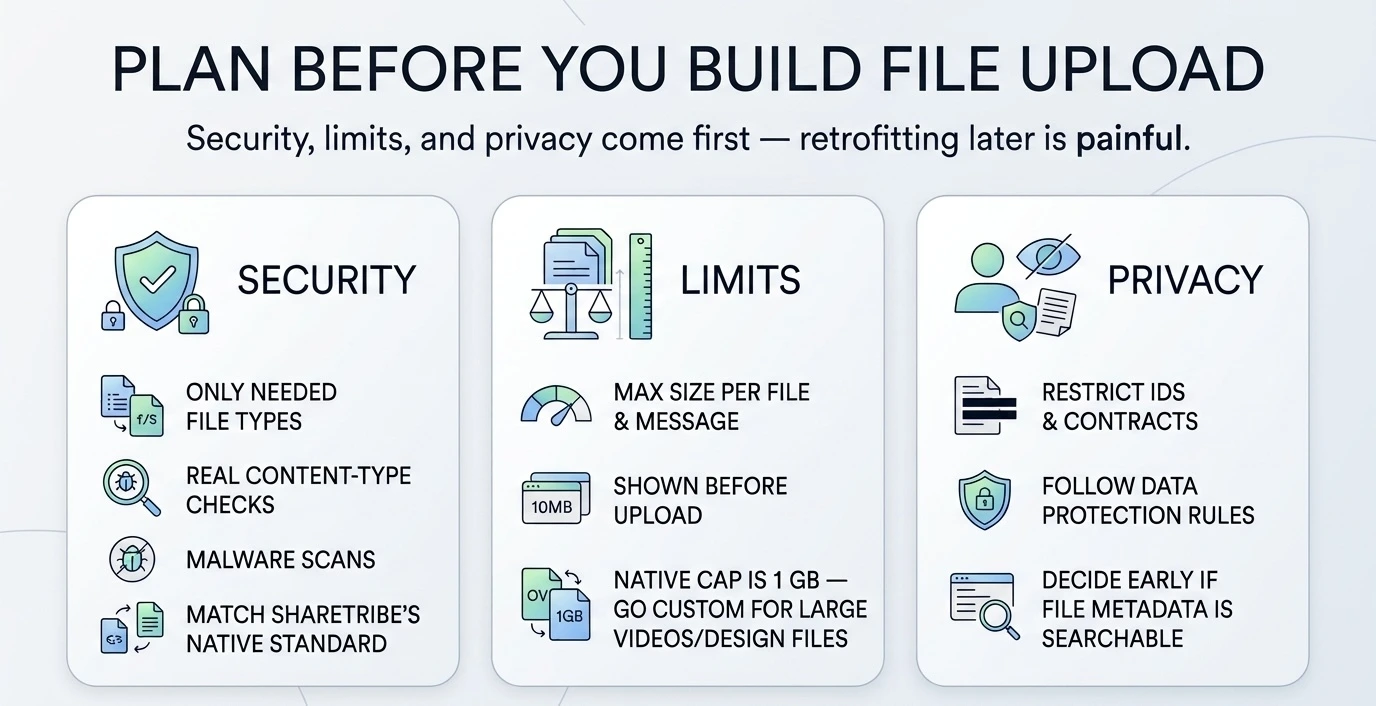
Plan for security, limits, and privacy before anything else, because retrofitting them after a file upload feature launch is painful. A few hours of planning now saves weeks later.
Security
Start with security. Allow only the file types you actually need, check the real content type rather than trusting the extension, and scan documents for malware. Sharetribe’s native attachments already block executables and scripts and scan every file for malware, and any custom flow should match that standard.
Size limits
Next come limits. Set a maximum size per file and per message, and tell users what those limits are before they upload. Sharetribe’s native limit is 1 GB per file, so if your users work with long videos or large design files, plan for a custom flow.
Privacy and data protection
Finally, think about privacy. Documents like IDs and contracts need restricted access, and in some markets they fall under data protection rules. If your marketplace relies on advanced search for collaborative marketplaces, decide early whether file metadata should be searchable, because that choice affects how you store it.
Ready to add file sharing to your marketplace?
If your users are still sending files by email, the fix is a feature that keeps everything in one place, and on Sharetribe it may be just a setting: turn on file attachments or the Digital download process in Console. Start with the file types your workflow truly needs, then grow from there.
At Roobykon, we built the file upload feature for a Sharetribe marketplace because we kept seeing the same pattern: good platforms losing conversations to inboxes. Now that the basics are native, we help teams go further: larger files, bulk imports, custom licensing and watermarks, plus real-time chat, automated dispute resolution, custom invoice generators, and full API integrations.
Want to see how it could work for your project?
Talk to our team about custom Sharetribe development, or contact us directly.
Get in touch
Recommended articles
 Booking Confirmation for Marketplaces: How It Works and How to Set It Up in Sharetribe
Learn how to set up the booking confirmation feature in Sharetribe: listing types, booking units, availability management, payouts and the mistakes that break confirmation.
 Sharetribe Marketplace Security: What the Platform Covers, and What Your Team Needs to Own
Not all security comes out of the box. Learn which protections Sharetribe provides, where the platform stops, and what your team must own in production.
 From Idea to Launch: How to Build a Two-Sided Marketplace That People Actually Use
Thinking about building a two‑sided marketplace? In 2026, you can launch an MVP without coding in days, but scaling requires custom logic, multi‑vendor payouts, and a robust trust layer. Roobykon's guide breaks down business models, feature priorities, software options, and what it actually costs to go custom.
 Sharetribe Reviews 2026: An Honest Look at the No-Code Marketplace Platform
Building a marketplace in 2026? Stop scrolling – this Sharetribe review is your reality check. We've crunched the numbers, analyzed real customer feedback, and mapped the platform against every marketplace type.
